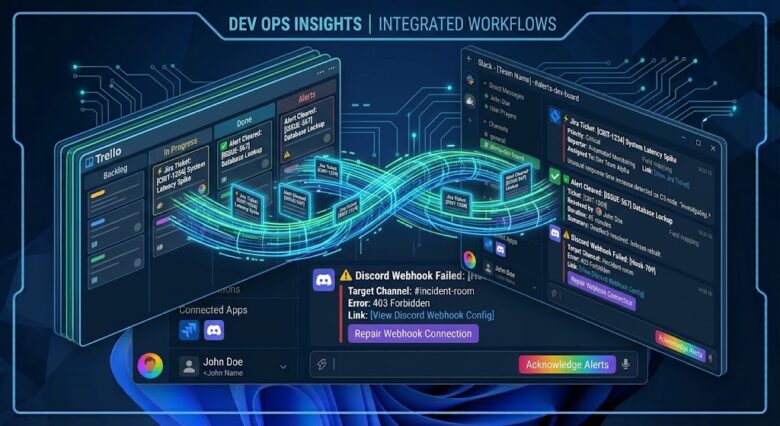
In modern agile environments, a company’s operational speed is defined by how quickly information flows between its database and its communication channels. Trello acts as a highly visual, flexible database for project management, while Slack serves as the central nervous system for team communication.
However, when these two systems operate in silos, friction immediately builds. If an engineer moves a critical bug ticket to the “Resolved” column in Trello, but forgets to manually message the QA team in Slack, deployment is delayed. If a project manager assigns a high-priority task, but the assignee doesn’t check Trello until the next morning, critical momentum is lost. Relying on human memory to bridge system gaps is an architectural failure.
By integrating Trello directly with Slack, you establish an automated pipeline where board events—such as moving cards, applying urgent labels, or approaching due dates—instantly trigger rich, contextual alerts in designated Slack channels. This masterclass guide will cover two distinct methodologies: setting up the native (but limited) Trello Power-Up, and architecting an enterprise-grade, custom API pipeline using Webhooks and Slack’s Block Kit builder for ultimate developer control.
Step 1: Preparing the Slack Architecture (Channel Strategy)
Before transmitting data, you must prepare the receiving environment. A common mistake teams make when integrating project management tools is routing all notifications into a general chat channel. If every minor update (e.g., changing a card’s description by one word) pings the #general channel, it creates “notification fatigue.” Within three days, your team will mute the channel, rendering the automation useless.

- Open your Slack workspace and create dedicated notification channels based on project streams. Examples:
#alerts-frontend-bugs#alerts-content-publishing#alerts-urgent-triage
- Configure channel permissions. If these alerts are for management review only, make the channel private. If they require team action, keep them public but restrict posting permissions so humans cannot clutter the automated feed with casual conversation.
- Determine your routing logic. A card moved to “Done” should ping
#alerts-qa, while a card labeled “Critical Server Error” should ping#devops-oncall.
Step 2: Method A — The Native Trello Power-Up (Standard Setup)
For teams that need basic connectivity without writing custom JSON payloads, the official Trello Slack Power-Up is the fastest deployment method. It utilizes a standard OAuth 2.0 handshake to connect the platforms.
- Open your designated Trello board.
- In the top right menu, click on the Power-Ups icon (the rocket ship).
- Search for Slack and click Add.
- Once added, click the Slack Power-Up button that now appears at the top of your board and select Edit Power-Up Settings.
- Click Add Slack Alert. Trello will prompt you to authenticate your Slack workspace. Grant the requested permissions.
- The Routing Configuration: You will now see a matrix of checkboxes. You must specify what happens in Trello to trigger an alert, and where that alert goes in Slack.
- Trigger: Select “Card moved to list…” and choose “Ready for QA”.
- Destination: Select your dedicated
#alerts-qachannel.
- Click Save.
While this native integration is reliable, it is structurally rigid. You cannot customize the look of the Slack message, you cannot route based on custom fields, and you cannot filter by specific assignees. For advanced conditional logic, we must bypass the Power-Up and build a custom API bridge.
Step 3: Method B — Custom Webhooks via Make (The Developer Approach)
To achieve enterprise-grade control, we will use Make (formerly Integromat) to intercept Trello’s backend webhooks and inject the data directly into Slack’s API. This allows us to filter events dynamically and format the notifications using Slack’s advanced Block Kit UI.
Initiating the Trello Webhook
- Log into your Make.com dashboard and click Create a new scenario.
- Add the Trello module and select the Watch Activities trigger.
- Connect your Trello account via API.
- Select the specific Board you want to monitor.
- Under Watch, select Cards. This tells Make to listen for any creation, movement, or update to a card on that specific board.
- Click OK. Make automatically registers a webhook onto Trello’s backend for that specific Board ID.
Applying Conditional Logic (The Filter)
If you connect Slack immediately after this trigger, every single keystroke in Trello will send a Slack message. We must filter the payload.
- Click the wrench icon on the dotted line connecting your Trello module to your next (empty) module, and select Set up a filter.
- Label: Name it
Only High Priority Moves. - Condition: Map the
Action Typevariable from the Trello payload and set it to Equal to: updateCard. - Add an AND rule. Map the
List After: Namevariable and set it to Equal to: Deployed to Production. - Add one final AND rule. Map the
Card: Labels: Namearray and set it to Contains: Urgent.
Now, the automation will instantly terminate unless a card is specifically moved into the “Deployed” list and carries the “Urgent” label.
Step 4: Architecting the Slack Block Kit Payload
Standard text messages in Slack are easily ignored. To make your automated alerts actionable, we will use Slack’s Block Kit—a UI framework that allows you to construct messages using JSON arrays, injecting buttons, dividers, and color-coded attachments.
- In Make, add the Slack module after your filter and select Create a Message.
- Authenticate your Slack account and select your destination channel (e.g.,
#alerts-production). - Instead of typing in the basic “Text” field, click the toggle for Use advanced settings and look for the Blocks array field, or use the Make an API Call Slack module to send raw JSON.
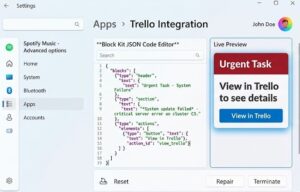
If you are using raw JSON via an HTTP POST request to a Slack Incoming Webhook, your payload should look like this:
JSON
{
  "blocks": [
    {
      "type": "header",
      "text": {
        "type": "plain_text",
        "text": "🚨 URGENT: Card Deployed",
        "emoji": true
      }
    },
    {
      "type": "section",
      "fields": [
        {
          "type": "mrkdwn",
          "text": "*Task Name:*\n{{Card_Name}}"
        },
        {
          "type": "mrkdwn",
          "text": "*Assigned To:*\n<@{{Slack_User_ID}}>"
        }
      ]
    },
    {
      "type": "divider"
    },
    {
      "type": "actions",
      "elements": [
        {
          "type": "button",
          "text": {
            "type": "plain_text",
            "text": "View in Trello"
          },
          "style": "primary",
          "url": "{{Card_URL}}"
        }
      ]
    }
  ]
}
Note on dynamic mapping: In Make, you will replace {{Card_Name}} and {{Card_URL}} with the actual dynamic green variables pulled from your Trello trigger module.
By using this Block Kit architecture, the Slack message arrives with a massive, bold header, a clean two-column layout for details, and a native, clickable blue button that routes the engineer directly to the specific Trello card.
Step 5: Handling User Mapping (Trello ID to Slack ID)
One of the most complex challenges in API integrations is user tagging. If “Jane Doe” is assigned to a card in Trello, sending the string “Jane Doe” to Slack will not actively ping her phone. Slack requires her unique alphanumeric Slack Member ID (e.g., U12345678) wrapped in bracket syntax (<@U12345678>) to trigger a push notification.
If your team is small, you can handle this natively inside Make using a Switch module (a basic routing table).
- Add a Switch function between Trello and Slack.
- Set the input to the
Trello Assignee Username. - Create cases: If Trello Username equals
janedoe_dev, outputU12345678. Ifjohnsmith_qa, outputU87654321. - Map the output of this Switch function directly into the JSON payload of your Slack message.
For enterprise teams with hundreds of users, hardcoding IDs is impossible. Instead, add a Slack: Get a User by Email module to your flow. Trello provides the assignee’s email address in its extended payload. Make can take that email, query the Slack API instantly, retrieve the correct Member ID dynamically, and inject it into the Block Kit message, guaranteeing perfect @mentions every time.
Frequently Asked Questions
1. Does this integration consume my API limits?
The native Trello Slack Power-Up does not consume your personal API limits. However, if you use a middleware like Make or Zapier, every automated message counts as an “Operation” or “Task”. A high-volume board moving hundreds of cards a day can quickly exhaust free-tier middleware limits, which is why aggressive filtering (Step 3) is absolutely critical.
2. Can I create Trello cards directly from a Slack message?
Yes. This is the reverse pipeline. You can use the native Slack /trello add [Task Name] slash command if the Power-Up is installed. Alternatively, in Make, you can set a trigger for “New Message Pushed to Slack Channel”, filter it for specific keywords or emoji reactions (like the 🎫 ticket emoji), and map that data into a “Create a Card” Trello action.
3. Why are my custom JSON Block Kit messages failing to send?
Slack’s Block Kit API is incredibly strict regarding JSON formatting. A single trailing comma, an unescaped quotation mark inside the Trello card description, or an empty variable will cause a 400 Bad Request error. Always pass dynamic text fields through a sanitization function (like replace()) to strip illegal characters before injecting them into the Slack JSON array.
4. Is it secure to send client data from Trello to Slack?
Both Trello (Atlassian) and Slack (Salesforce) are SOC 2 compliant, and data passed between them via official APIs or verified enterprise middleware (Make/Zapier) is encrypted in transit using TLS 1.2+. However, you must ensure your Slack channels are appropriately permissioned (Private vs. Public) so sensitive Trello board data is not broadcast to external Slack Connect guests or contractors.
Sources and References
- Atlassian Developer Docs: Trello Webhooks and API Rate Limits.
- Slack API Documentation: Building rich messages with Block Kit.
- Make (Integromat) Knowledge Base: Routing, Error Handling, and JSON Parsing.