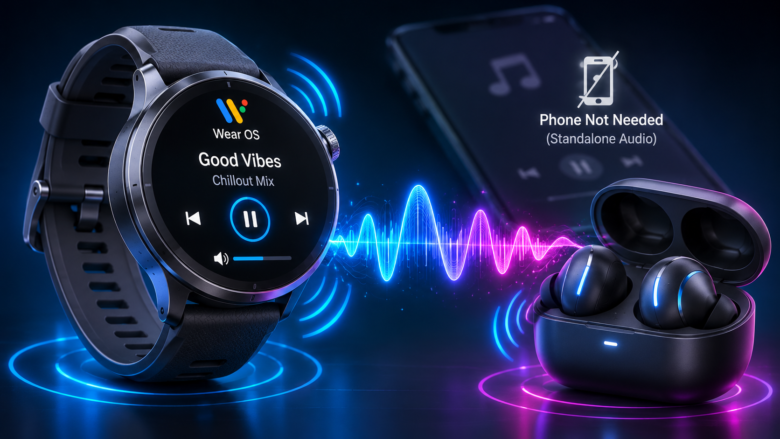
The primary advantage of owning a WearOS smartwatch is the ability to leave your heavy smartphone at home during a workout or a run, relying on the watch’s internal storage or cellular connection to stream music directly to your wireless earbuds. However, managing a Bluetooth connection from a smartwatch is fundamentally different than managing one from a smartphone.
Because smartwatches have significantly smaller antennas, highly aggressive battery-saving algorithms, and limited Bluetooth codec support, users frequently experience audio stuttering, pairing failures, and the dreaded “connected but no audio” glitch. Furthermore, modern earbuds featuring “Multipoint” connectivity often prioritize your smartphone, refusing to route audio from the watch.
This comprehensive technical guide outlines the precise architecture of the WearOS Bluetooth stack. It provides a step-by-step workflow for establishing a clean pairing handshake, forcing the A2DP audio profile, managing codec limitations, and clearing corrupted Bluetooth caches to ensure flawless wireless audio playback directly from your wrist.
Phase 1: The Clean Pairing Protocol (Bypassing Multipoint Conflicts)
The most common reason wireless earbuds fail to connect to a WearOS watch is a conflict with “Bluetooth Multipoint.” Multipoint is a feature that allows modern earbuds (like the Sony WF-1000XM5 or Jabra Elite series) to connect to two devices simultaneously (e.g., your phone and your laptop).
Because your smartwatch is already paired to your smartphone via Bluetooth Low Energy (BLE) to receive notifications, introducing a third connection (the earbuds to the watch) often causes the earbuds’ firmware to panic and reject the watch’s handshake request.
How to Execute a Clean WearOS Pairing: To force the earbuds to acknowledge the watch as the primary audio source, you must temporarily sever the earbuds’ connection to your smartphone.
- Disable Phone Bluetooth: Open your smartphone and completely turn off Bluetooth. Do not simply disconnect the earbuds; turn off the smartphone’s Bluetooth radio entirely so the earbuds are forced into a “searching” state.
- Initiate Earbud Pairing Mode: Place your wireless earbuds into manual pairing mode. (For most models, this involves placing them in the case and holding the back button for 3 to 5 seconds until an LED flashes white or blue).
- Navigate WearOS Settings: On your WearOS watch, swipe down from the top of the screen and tap the Settings (gear) icon.
- Pair the Device: Go to Connections > Bluetooth > Pair new device (or “Available devices” depending on your WearOS version).
- Tap your earbuds when they appear in the list. The watch will establish a direct, unshared handshake.
- Once the earbuds state “Connected” on the watch screen, you may turn your smartphone’s Bluetooth back on.
Phase 2: Resolving the “Connected but No Audio” Glitch (A2DP vs. HFP)
A frequent and frustrating error occurs when the WearOS settings menu explicitly says the earbuds are “Connected,” but when you press play on Spotify or YouTube Music, the audio still blasts out of the watch’s tiny built-in speaker.
This happens because of a failure in Bluetooth Profile routing. Bluetooth is not a single pipeline; it is composed of different profiles. The two most important for wearables are:
- A2DP (Advanced Audio Distribution Profile): Used for streaming high-quality media (music and podcasts).
- HFP (Hands-Free Profile): Used strictly for two-way voice calls.
Sometimes, the watch successfully connects to the earbuds via HFP (for calls) but fails to lock onto the A2DP profile for media.
How to Force the A2DP Audio Route:
- On your WearOS watch, go to Settings > Connections > Bluetooth.
- Tap the gear icon next to your connected earbuds.
- You will see toggles for Phone audio and Media audio.
- If Media audio is toggled off, turn it on. If it is already on but no sound is playing, toggle it OFF, wait 5 seconds, and toggle it back ON. This forces the WearOS operating system to re-negotiate the A2DP handshake.
- If this fails, open the media app (e.g., Spotify). Look for the “Device Output” icon (usually a speaker or watch icon at the bottom of the playback screen). Tap it and manually select your Bluetooth earbuds from the output list.
Phase 3: Understanding Codec Limitations and Audio Latency
If you are an audiophile, you might notice that your premium earbuds sound slightly “flatter” or lack bass depth when connected to your WearOS watch compared to your smartphone. This is not a defect; it is a hardware and operating system limitation regarding Bluetooth Audio Codecs.
High-resolution audio codecs like Sony’s LDAC or Qualcomm’s aptX HD require massive amounts of bandwidth and CPU processing power. Processing these codecs continuously would drain a 300mAh smartwatch battery in less than an hour and cause the device to overheat.
To preserve battery life and maintain system stability, Google restricts the WearOS audio stack almost exclusively to SBC (Subband Codec) and occasionally AAC (Advanced Audio Coding).
- SBC: The universal fallback codec. It heavily compresses the audio, clipping the extreme highs and lows to save bandwidth.
- AAC: Marginally better quality and more efficient, natively supported by Apple AirPods and some newer WearOS devices (like the Pixel Watch 2 or Galaxy Watch 6).
Mitigating Latency: Because WearOS relies on standard SBC/AAC, you will likely experience a 200ms to 300ms audio delay. While this is entirely unnoticeable when listening to music or running, it means you should never attempt to watch a video on your watch (or play a localized game) while using Bluetooth earbuds, as the lip-sync will be jarringly out of phase.
Phase 4: Fixing Audio Stuttering and RF Interference
Smartwatches transmit Bluetooth signals at a much lower wattage than a smartphone. If you are running outdoors and your music begins to skip, stutter, or drop out entirely, you are experiencing physical interference blocking the Radio Frequency (RF) signal. The human body is essentially a giant bag of water, which is one of the most effective absorbers of 2.4GHz radio waves (the frequency used by Bluetooth).
The Cross-Body Interference Fix: Most true wireless earbuds designate one earbud as the “Primary” receiver (usually the right earbud), which then relays the signal to the “Secondary” earbud (the left). If you wear your smartwatch on your left wrist, the low-power Bluetooth signal must travel through your torso to reach the primary receiver in your right ear. This cross-body transmission frequently causes audio stuttering, especially when your arms are swinging during a run.
- Solution 1: Switch your smartwatch to your right wrist during your workout. By placing the watch on the same side of your body as the primary earbud receiver, you establish a clear, unobstructed line of sight for the RF signal, instantly curing 90% of outdoor audio dropouts.
- Solution 2: Disable Wi-Fi on the watch while running. Wi-Fi and Bluetooth both operate on the 2.4GHz spectrum. If the watch is aggressively searching for a Wi-Fi network while you are jogging, the internal antenna can experience multiplexing conflicts, causing the Bluetooth audio to skip. Go to Settings > Connectivity > Wi-Fi and toggle it off during music playback.
Phase 5: Clearing the Corrupted Bluetooth Cache
If your earbuds constantly disconnect after exactly 5 minutes, or if the watch refuses to pair despite being in pairing mode, the localized Bluetooth cache inside the WearOS system partition has likely become corrupted.
Because the watch is constantly managing a low-energy connection to your phone while trying to manage a high-energy connection to your earbuds, the MAC address logs can become tangled. You must clear the system cache to reset the Bluetooth radio.
- On your WearOS watch, navigate to Settings > Apps & notifications > App info.
- Scroll to the very bottom and tap System apps (or “Show system apps”).
- Scroll through the alphabetical list and tap on Bluetooth.
- Tap on App info > Storage.
- Tap Clear Cache.
- Optional but recommended: Tap Clear Data. (Note: Clearing data will completely wipe your watch’s Bluetooth memory. You will need to re-pair the watch to your phone via the companion app, as well as re-pair your earbuds).
- Hold the power button and restart the smartwatch.
Upon rebooting, the Bluetooth radio will initialize with a completely clean slate. Follow the protocol in Phase 1 to pair your earbuds, and the connection will be mathematically stable, interference-free, and correctly routed for media playback.
Frequently Asked Questions
1. Can I pair AirPods to a WearOS smartwatch?
Yes. Despite being Apple products, AirPods utilize standard Bluetooth protocols. Simply open the AirPods case, hold the pairing button on the back until the light flashes white, and search for them in the WearOS Bluetooth menu. However, you will lose Apple-exclusive features like Spatial Audio and automatic device switching.
2. Why does my smartwatch battery die so fast when listening to music?
Streaming audio from a watch is incredibly resource-intensive. The watch must decode the MP3/OGG file using its CPU and continuously transmit a high-bandwidth A2DP Bluetooth signal. Listening to locally downloaded music on a WearOS watch will typically drain the battery by 15% to 20% per hour. If you are streaming via LTE (cellular) while listening via Bluetooth, the battery may deplete in under two hours.
3. How do I adjust the volume if my earbuds do not have physical buttons?
If your earbuds rely on swipe gestures that fail to register, or if they have no volume controls at all, you must control the volume directly from the watch. While music is playing, swipe up from the bottom of the watch face to access the media controls, and tap the speaker icon to access the digital volume slider. Alternatively, use the physical rotating crown on your watch (if applicable, like on the Galaxy Watch Classic) to turn the volume up or down.
4. Can I use a Bluetooth heart rate chest strap and wireless earbuds at the same time?
Yes. WearOS supports multiplexing multiple Bluetooth connections simultaneously, provided they use different profiles. The chest strap connects via the BLE (Bluetooth Low Energy) health profile, while the earbuds connect via the A2DP media profile. They will not interfere with each other, though running both simultaneously will increase battery consumption.
Recommended Resources
- Google WearOS Support Portal: Official documentation regarding OS-level Bluetooth updates, audio output routing, and connectivity troubleshooting for Android-based wearables (support.google.com/wearos).
- Spotify & YouTube Music WearOS Apps: Ensure you always keep your media apps updated via the on-watch Google Play Store, as developers frequently push localized patches to fix specific offline-playback audio stutters.
- Earbud Manufacturer Companion Apps: Even if you use your earbuds strictly with your watch, always pair them to your phone periodically to use apps like Sony Headphones Connect or Jabra Sound+ to download the latest firmware updates to the earbuds themselves