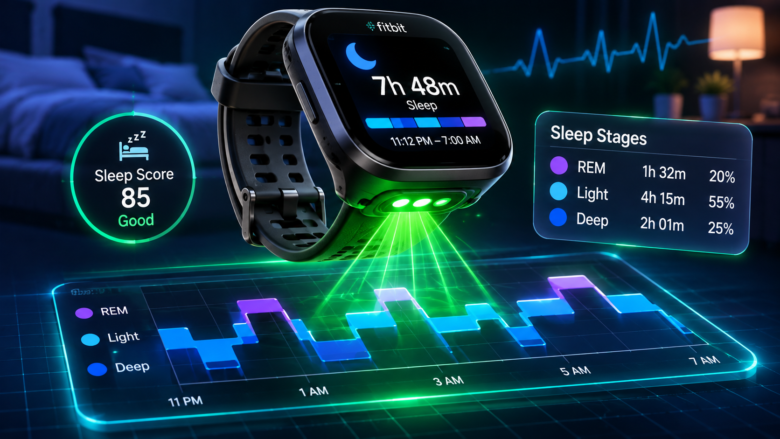
Fitbit (now fully integrated into the Google wearable ecosystem) relies on a combination of 3-axis accelerometers and Photoplethysmography (PPG) sensors to estimate your nightly sleep architecture. Unlike clinical polysomnography (PSG) which utilizes electrodes to measure actual brain waves (EEG), wrist-based wearables infer your sleep state strictly through movement and cardiovascular variations.
Independent research indicates that Fitbit’s sleep staging algorithm achieves roughly 60% to 65% accuracy when compared directly to clinical lab results. While this is excellent for tracking multi-week behavioral trends, environmental factors and hardware misconfigurations can easily disrupt the sensor data, leading to wildly inaccurate nightly readouts.
If your Fitbit is failing to log REM sleep, overestimating your total sleep time, or reverting to basic sleep graphs, the issue is usually a physical sensor obstruction or an algorithmic miscalculation. This comprehensive technical guide provides a systematic workflow to diagnose and resolve Fitbit sleep tracking inaccuracies at the hardware and software levels.
Phase 1: Diagnosing “Staged” vs. “Classic” Sleep Data Payloads
The most common complaint among Fitbit users is the sudden disappearance of detailed sleep stages (Light, Deep, and REM), replaced instead by a basic graph showing only “Asleep,” “Restless,” and “Awake.”
To fix this, you must understand how Fitbit processes data packets. Fitbit sends one of two types of sleep data to the Google Health (formerly Fitbit) servers:
- Staged Data (High Fidelity): Processed at 30-second granularity. This requires a continuous, uninterrupted heart rate signal combined with movement data.
- Classic Data (Low Fidelity): Processed at 60-second granularity. This relies only on the accelerometer (movement).
If your app displays “Classic” data, it means the watch’s operating system detected that you were asleep (due to a lack of movement) but the PPG sensor failed to secure a continuous heart rate lock for a minimum of three hours. To restore “Staged” data, you must fix the cardiovascular sensor contact.
Phase 2: Calibrating PPG Sensor Placement and Tension
The green optical LEDs on the back of your Fitbit (the PPG sensor) measure your heart rate by illuminating your capillaries and measuring the micro-changes in blood volume with every heartbeat.
If the watch is worn incorrectly during sleep, ambient light leaks into the sensor, or the sensor loses contact with your skin, causing the sleep algorithm to crash and revert to Classic data.
The 2-Finger Rule for Nocturnal Tracking:
- Placement: Do not wear the watch directly over your wrist bone (ulnar styloid process). The bone blocks the capillaries, resulting in a weak PPG signal. Push the band 2 to 3 finger-widths higher up your forearm. The tissue here is denser, providing a vastly superior heart rate lock.
- Tension: The band must be snug but absolutely not tight. If the band restricts circulation, it suppresses the volumetric blood expansion the sensor is trying to read. You should be able to slide your pinky finger under the band with slight resistance.
- Orientation: Ensure the watch is configured for the correct wrist. In the Google Health app, go to Devices > [Your Fitbit] > Wrist Placement. If you wear it on your non-dominant hand (recommended to reduce false movement data), ensure the software reflects this.
Phase 3: Adjusting Algorithmic Sleep Sensitivity
If your Fitbit accurately records your heart rate but consistently thinks you are asleep when you are simply watching television or reading a book, the internal accelerometer’s sensitivity threshold is misconfigured.
Fitbit allows users to toggle how aggressively the algorithm interprets physical movement.
- Open the Google Health app (formerly the Fitbit app, rebranded in May 2026).
- Tap on your profile picture or the Settings gear icon.
- Navigate to Activity & Wellness > Sleep.
- Locate the Sleep Sensitivity setting.
- Change this from Normal to Sensitive.
Technical Impact: In “Normal” mode, the algorithm ignores minor wrist movements, which is why it might assume you are in Light Sleep while lying on the couch. Switching to “Sensitive” forces the accelerometer to log almost all micro-movements as “Awake” time. This will drastically reduce false sleep logs, though it may also slightly reduce your overall “Total Sleep Time” metric as it becomes stricter about your true sleep onset.
Phase 4: Understanding HRV and Clinical Fragmentation (Why Data Looks Wrong)
If your sleep stages are logging correctly, but the data feels fundamentally wrong (e.g., you feel exhausted but Fitbit says you had 8 hours of great sleep), you may be hitting the technical limitations of consumer wearables. Fitbit determines your specific sleep stages by analyzing your Heart Rate Variability (HRV)—the microscopic variations in time between individual heartbeats.
- Deep Sleep: Characterized by a slow, highly regular heart rate.
- REM Sleep: Characterized by an irregular, faster heart rate with low HRV, mimicking your waking cardiovascular state.
The Sleep Apnea and Insomnia Variable:If you suffer from sleep fragmentation (such as Obstructive Sleep Apnea, restless leg syndrome, or severe insomnia), Fitbit’s algorithm will frequently fail. During an apnea event, you micro-awaken to breathe. You toss and turn. The Fitbit accelerometer detects this movement, but because you did not physically stand up and walk around, the algorithm assumes you merely transitioned into “Light Sleep”.
As a result, clinical patients often see Fitbit overestimate their total sleep time by classifying hours of tossing and turning as continuous Light Sleep. If you suspect a sleep disorder, you must rely on a clinical PSG study, as wrist-based PPG sensors cannot measure the actual EEG brainwaves required to diagnose micro-awakenings accurately.
Phase 5: Clearing Corrupted Bluetooth Cache and Sync Errors
Sometimes, the watch perfectly tracks your sleep architecture, but the app simply displays a blank screen or a “No Sleep Data” error. This is not a hardware failure; it is a Bluetooth Low Energy (BLE) packet transfer failure between the watch and the Google Health servers.
To force a localized data dump from the watch’s temporary flash memory to the cloud:
- Close the Google Health app entirely (swipe it away from your multitasking menu).
- Open your smartphone’s native Settings.
- Navigate to Apps > See all apps.
- Find Bluetooth (you may need to tap “Show System Apps” in the top right corner).
- Tap Storage & Cache and select Clear Cache.
- Restart your smartphone.
- While the phone reboots, perform a soft reset on the Fitbit. (For a Versa or Sense, hold the side button for 10 seconds until the logo appears).
- Open the Google Health app and pull down on the dashboard to force a manual sync.
The watch stores up to 7 days of detailed minute-by-minute sleep data internally. Forcing this clean handshake will immediately push the missing sleep stages to the cloud server, restoring your missing graphs.
Frequently Asked Questions
1. Why doesn’t my Fitbit record my afternoon naps?
The Fitbit sleep algorithm requires a minimum consecutive sleep duration to trigger the data packaging protocol. To log “Classic” basic sleep, you must be asleep for at least one hour. To log detailed “Staged” sleep (Light, Deep, REM), the watch must detect continuous sleep for a minimum of 3 hours. Short 45-minute power naps will only register as periods of low heart rate, not as official sleep logs.
2. Do I need a Google Health Premium subscription to see my sleep stages?
No. The core breakdown of Light, Deep, and REM sleep, as well as your daily 0-100 Sleep Score, is available on the free tier. The $9.99/month Premium subscription unlocks advanced metrics, such as your sleeping heart rate against your resting baseline, detailed restlessness graphs, and long-term sleep profile animal assignments.
3. Why are my SpO2 (Blood Oxygen) readings missing from my sleep data?
SpO2 tracking uses the red and infrared LEDs on the back of compatible devices (like the Sense 2 or Charge 6). This sensor requires extreme stillness. If you sleep on your arm, restricting blood flow, or if you toss and turn excessively, the watch cannot get a consistent optical reading and will abandon the SpO2 calculation for that night. Ensure the watch is tight enough to prevent light leak but loose enough to maintain full circulation.
4. Can tattoos affect Fitbit sleep tracking?
Yes. Dark, heavy ink directly under the optical sensor absorbs the green light emitted by the PPG hardware, preventing it from reflecting off your capillaries. This causes frequent heart rate dropouts, which forces the watch to abandon “Staged” sleep tracking. If you have full sleeves, try moving the watch to the other wrist or higher up the arm where the skin is clear.
Recommended Resources
- Google Health App (Sleep Section): The primary hub for reviewing your multi-week sleep trends, which provide significantly more accurate physiological insights than any single night’s data.
- Fitbit Official Community Forums: A highly active technical space to check if a recent over-the-air (OTA) firmware update has temporarily broken the sleep algorithm for your specific device model.
- InsideTracker: An advanced bio-analytics platform that can ingest Fitbit sleep data and cross-reference it with your blood work to provide highly targeted nutritional advice for improving Deep Sleep metrics.