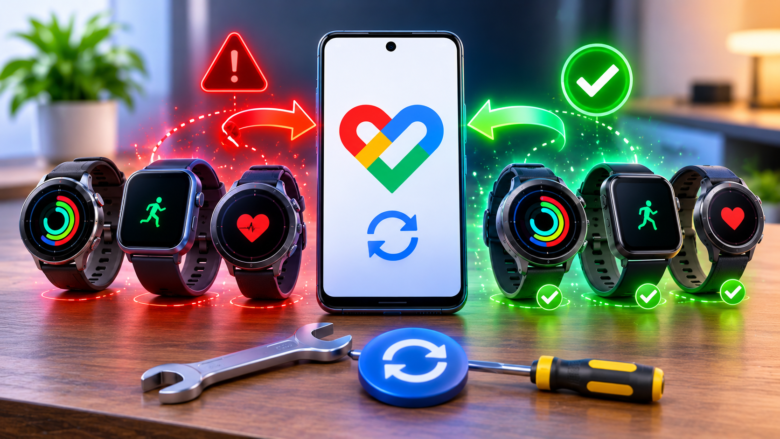
The Android wearable ecosystem is highly fragmented. Unlike Apple, where the Apple Watch feeds data directly into a single native Apple Health repository, Android relies on dozens of proprietary applications. If you own a Garmin, your data goes to Garmin Connect; an Amazfit sends data to Zepp; a Xiaomi band uses Mi Fitness.
To create a centralized dashboard, users attempt to bridge these proprietary apps to Google Fit. However, users frequently experience missing step counts, delayed heart rate graphs, or complete data duplication. These syncing failures are rarely caused by a broken smartwatch. Instead, they stem from deprecated APIs, aggressive Android background battery management killing the sync process, or misconfigured read/write permissions within Google’s unified data architecture.
This comprehensive technical guide outlines the modern Android health data pipeline. It provides a step-by-step workflow to diagnose broken API handshakes, resolve data priority conflicts, and establish a permanent, flawless sync between your third-party smartwatch app and Google Fit.
Phase 1: Understanding the Shift to Google Health Connect
Before troubleshooting individual apps, you must understand the current architecture of Android health data. Historically, third-party apps synced directly to Google Fit via the Google Fit REST API.
However, Google deprecated this direct API in favor of a centralized, on-device database called Health Connect. Health Connect acts as a secure middleware layer. Your smartwatch app (e.g., Zepp) writes data into Health Connect, and Google Fit reads that data out of Health Connect. If your third-party smartwatch app is outdated, or if you have not configured Health Connect properly on your Android device, the sync will silently fail.
- Open your Android smartphone’s native Settings.
- Navigate to Security & Privacy (or simply search for “Health Connect” in the settings search bar).
- Tap on Health Connect to open the centralized dashboard.
- Tap on App permissions.
- Ensure that both Google Fit and your specific smartwatch companion app (e.g., Zepp or Garmin Connect) appear in the “Allowed access” list.
- If they are not listed, open the respective apps, navigate to their third-party integration settings, and explicitly link them to Health Connect, not the old Google Fit login prompt.
Phase 2: Auditing Read and Write Permissions
For the Health Connect middleware pipeline to function, data must flow in a specific direction. Your smartwatch app must have permission to Write (push) data to the database, and Google Fit must have permission to Read (pull) data from it. A common reason for missing data (like steps showing up but heart rate missing) is granular permission denial.
Configuring the Smartwatch App (The Data Provider):
- In the Health Connect App permissions menu, tap your smartwatch app (e.g., Zepp).
- You will see a massive list of granular toggles divided into two sections: “Allow to read” and “Allow to write”.
- Scroll down to the Allow to write section.
- Ensure that toggles for Steps, Heart rate, Sleep, Active calories burned, and Distance are all toggled ON. If a specific metric is toggled off, the watch will track it, but the app will be legally forbidden by the Android OS from sharing it with Google Fit.
Configuring Google Fit (The Data Receiver):
- Return to the Health Connect App permissions menu and tap on Fit (Google Fit).
- Scroll to the Allow to read section.
- Tap Allow all to ensure Google Fit is authorized to pull all the metrics pushed by your smartwatch app.
Phase 3: Bypassing Aggressive Android Battery Optimization
If your watch syncs data perfectly when you manually open the apps, but fails to sync in the background throughout the day, your smartphone’s operating system is killing the background sync service to save battery life.
Smartphone manufacturers like Samsung, Xiaomi, and OnePlus use hyper-aggressive RAM management protocols (often called “Doze” mode). They detect that the Zepp or Garmin app is running in the background and silently terminate it. Without the companion app running, the Bluetooth payload from the watch cannot be processed and forwarded to Google Fit. You must explicitly exempt both your smartwatch app and Google Fit from these battery restrictions.
- Open your smartphone’s Settings and navigate to Apps > See all apps.
- Find and tap on your proprietary smartwatch app (e.g., Zepp).
- Tap on App battery usage (or “Battery”).
- Change the setting from Optimized (the default) to Unrestricted. This tells the OS to never kill the app’s background processing thread.
- Return to the app list, find Fit (Google Fit), and change its battery usage to Unrestricted as well.
- Crucial Step for Xiaomi/POCO users: In the app info page, ensure the Autostart toggle is switched ON so the app boots up immediately if the phone restarts.
Phase 4: Resolving Data Duplication and Step Priority Conflicts
A highly frustrating error occurs when Google Fit drastically overestimates your daily steps. For example, your smartwatch says you walked 5,000 steps, but Google Fit logs 8,000 steps. This happens because Google Fit utilizes your smartphone’s internal accelerometer to track steps in your pocket. If you are walking with your phone in your pocket and your smartwatch on your wrist, both devices generate a step count. If the apps are not properly prioritized, Google Fit simply adds the two payloads together, duplicating the data.
How to Disable Smartphone Step Tracking: To ensure Google Fit acts strictly as a dashboard for your smartwatch (and not as a secondary tracker), you must disable its localized tracking capability.
- Open the Google Fit app.
- Tap on your Profile icon in the bottom navigation bar.
- Tap the Settings (gear) icon in the top right corner.
- Scroll down to the “Tracking preferences” section.
- Toggle OFF the switch labeled Track your activities.
Managing Data Priority in Health Connect: If you own two smartwatches (e.g., a Galaxy Watch and a Garmin) and wear them on different days, Health Connect needs to know which data to trust if both apps push overlapping timestamps.
- Open Health Connect from your phone settings.
- Tap on Data and access.
- Tap on a specific metric, such as Steps.
- At the bottom of the screen, tap App priority.
- You can drag and drop your connected apps. Place your primary smartwatch app at the very top of the list. If both apps push data for 2:00 PM, Health Connect will exclusively use the data from the app in the #1 position and discard the duplicate.
Phase 5: The OAuth Token Reset (Fixing the Silent Disconnect)
When you first link a third-party app to Google Fit or Health Connect, the app requests an OAuth 2.0 authorization token. For security reasons, these cryptographic tokens can occasionally expire, especially after major Android OS updates or password changes.
When a token expires, the third-party app will continue attempting to push data, but Google will silently reject the payload. Neither app will display an error message; the data simply stops appearing. To fix a silent disconnect, you must manually revoke and regenerate the API token.
- Open the companion app for your smartwatch (e.g., Zepp, Garmin Connect, Mi Fitness).
- Navigate to the app’s settings and find the Connected Accounts or Third-Party Integrations menu.
- Select Google Fit / Health Connect and tap Unlink or Disconnect.
- Next, open your smartphone’s native Settings and go to Google > Settings for Google apps > Connected apps (or “Third-party apps with account access”).
- Locate the smartwatch app in the list, tap it, and select Remove Access. This severs the broken cryptographic handshake at the Google server level.
- Restart your smartphone to clear any localized API cache.
- Open your smartwatch app, navigate back to the integration menu, and re-link the account. This will generate a fresh, uncorrupted OAuth token.
Force a manual sync by pulling down on the dashboard of your smartwatch app. Open Google Fit, and within 30 to 60 seconds, your historical and real-time data should successfully populate the graphs.
Frequently Asked Questions
1. Why is there a delay between my watch app and Google Fit?
Google Fit does not pull data in real-time. To conserve battery life and server bandwidth, Health Connect and Google Fit operate on “batch syncing” schedules. Your smartwatch app will typically push a batch of data to the database every 15 to 30 minutes, or immediately upon a manual refresh. Do not expect step-for-step live mirroring on the Google Fit dashboard.
2. Can I use a third-party bridge app to sync data?
Yes. If your specific smartwatch manufacturer refuses to support Health Connect natively (which is rare but happens with niche budget brands), you can use third-party bridge applications like Health Sync (available on the Google Play Store). These apps read the data from your proprietary app (like Huawei Health) and force-translate the payload into a format Google Fit can accept.
3. Why doesn’t my custom smartwatch sleep data perfectly match Google Fit?
Sleep architecture algorithms are highly proprietary. When an app like Garmin pushes sleep data to Health Connect, it pushes the raw start time, end time, and stage timestamps. However, Google Fit applies its own rendering logic to those timestamps. Because Google and Garmin define “Deep Sleep” slightly differently, the visualizations on the two apps may vary by a few minutes, even though the raw data payload is identical.
4. Will resetting my smartwatch fix syncing issues?
Usually, no. Syncing errors to Google Fit are API-level issues occurring on the smartphone or cloud level, not the wearable hardware level. Factory resetting the watch will simply wipe your local data without fixing the broken OAuth token or battery optimization settings on the phone. Always troubleshoot the smartphone settings first.
Recommended Resources
- Health Connect by Android: The official Google utility app (now built natively into Android 14+) required to route localized health metrics between applications safely.
- Health Sync App: A highly rated third-party utility in the Play Store used to force-bridge unsupported ecosystems (like Samsung Health or Huawei Health) directly into Google Fit.
- Google Fit Help Center: The official documentation portal detailing how to manage app priorities and manually delete duplicated journal entries from your health timeline.