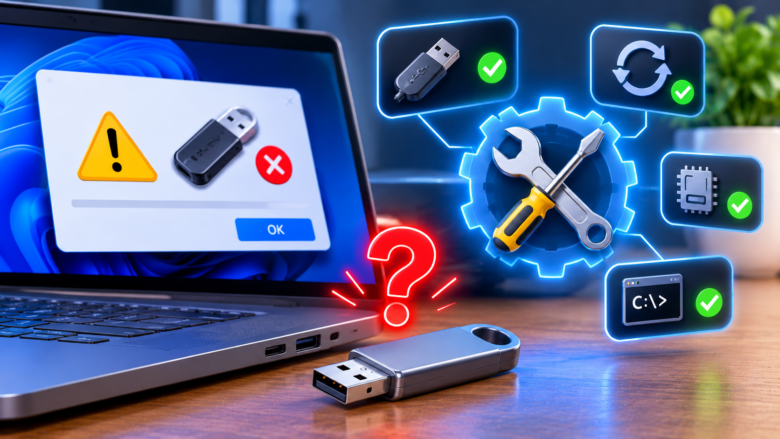
Connecting an external hard drive, flash drive, gaming mouse, or audio interface to your computer should be an instant plug-and-play handshake. Instead, Windows chimes with a failure tone and throws a taskbar notification reading: “The last USB device you connected to this computer malfunctioned, and Windows does not recognize it.” Your storage drive never appears in File Explorer, or your peripheral sits completely unresponsive despite having power.
When a PC fails to recognize a USB device, the breakdown almost always happens during the USB enumeration phase—the split-second negotiation where the motherboard’s host controller asks the plugged-in hardware for its Device Descriptor (vendor ID, product ID, and power requirements). If voltage drops across the port, static charge lingers in the motherboard capacitors, a power-saving setting cuts the connection prematurely, or the host controller driver corrupts, Windows halts communication and flags the hardware as an Unknown USB Device.
Before assuming your flash drive or peripheral is permanently dead, work through the hardware and operating system fixes below to restore clean communication between your USB ports and Windows.
Why Windows Fails to Recognize USB Hardware
Understanding where the connection drops saves you from wasting time on the wrong repair. When you plug a USB connector into a port, four distinct layers must cooperate:
- Physical Contact and Voltage Delivery: The port must supply a steady 5V current over the VBUS pin while maintaining clean signal integrity across the D+ and D- data pins.
- Hardware Enumeration: The USB Root Hub requests a packet called the Device Descriptor. If the data lines experience interference or timing delays, Device Manager logs Unknown USB Device (Device Descriptor Request Failed) or Error Code 43.
- Power Management Governance: Windows 10 and Windows 11 aggressively suspend idle USB ports to conserve energy, which frequently prevents external drives and headsets from waking up properly.
- Host Controller and Chipset Translation: The xHCI (Extensible Host Controller Interface) driver translates USB traffic for your CPU and motherboard chipset. Corrupted controller drivers block even brand-new peripherals from initializing.
Fix 1: Rule Out Port, Hub, and Cable Bottlenecks
Before modifying system drivers or registry power states, isolate whether the fault lies with the physical connection path or the Windows operating system.
- Bypass Unpowered USB Hubs: Plugging an external mechanical hard drive, capture card, or RGB keyboard into an unpowered USB splitter starves the device of amperage. Unplug the device from any hub or front-panel extension cable and connect it directly to a rear motherboard USB port.
- Switch Between USB 2.0 and USB 3.x Ports: Sometimes an older peripheral struggles with the strict timing of a blue or red USB 3.0/3.2 port, or a high-speed drive fails to negotiate on a worn front-panel connector. Test the device in a completely different port generation on the back I/O shield.
- Inspect the Connector and Swap the Cable: Detachable micro-USB and USB-C cables degrade internally long before showing external fraying, sometimes passing power (lighting up the device LED) while breaking the internal data wires. Test with a certified data-rated cable and inspect the port for dust buildup or bent pins.
- Test on a Second Computer: Plug the USB device into another laptop or desktop. If it throws the exact same “USB Device Not Recognized” message on a second machine with a different cable, the device’s internal controller chip has likely suffered a hardware fault.
Fix 2: Perform a Full Motherboard Capacitor Power Drain
One of the most surprisingly effective fixes for sudden USB port failure requires zero software changes. Motherboard USB controllers and Southbridge chipsets can accumulate residual static charge or enter a tripped over-current protection state after a power surge or an improper device disconnection. Even when you shut down Windows normally, the motherboard continues supplying 5V standby power to the USB rails, keeping the glitched controller state alive.
To flush the motherboard capacitors and force the USB host controllers to cold-boot:
- Unplug the problematic USB device (and any non-essential external drives) from your computer.
- Shut down Windows completely via Start > Power > Shut down.
- For Desktop PCs: Flip the physical power switch on the back of your Power Supply Unit (PSU) to the O (Off) position, or unplug the main AC power cable from the wall outlet.
- For Laptops: Unplug the AC charging brick from the laptop.
- Press and hold your computer’s physical power button for 30 full seconds. This drains all remaining electrical charge trapped in the motherboard capacitors and resets the USB controller registers.
- Reconnect the power cable, boot Windows back to the desktop, and plug your USB device back in.
Fix 3: Uninstall the Faulty Device in Device Manager (Code 43 & Descriptor Errors)
When Windows fails to read a USB device’s identity once, it caches that broken status in the system registry. Simply unplugging and re-plugging the cable often causes Windows to reload the cached error instead of attempting a fresh handshake.Suggested Image Name: windows-device-manager-unknown-usb-device-descriptor-failed.webp
Clearing this corrupted hardware entry forces Windows to re-enumerate the device from scratch:
- Right-click the Start button on your taskbar and select Device Manager (or press Windows Key + X and choose Device Manager).
- Scroll to the very bottom of the hardware tree and expand Universal Serial Bus controllers.
- Look for an entry marked with a yellow warning triangle, commonly labeled Unknown USB Device (Device Descriptor Request Failed), Unknown USB Device (Port Reset Failed), or a device showing Error Code 43 inside its Properties window.
- Right-click the flagged entry and select Uninstall device.
- Click Uninstall in the confirmation prompt to strip the cached hardware state from Windows.
- Unplug your USB device physically from the PC, wait 10 seconds, and plug it back into a rear USB port.
- In the Device Manager top menu bar, click Action > Scan for hardware changes so Windows detects and installs a clean driver profile.
Fix 4: Disable the Windows USB Selective Suspend Setting
Windows includes an aggressive power-saving feature called USB Selective Suspend, which allows the operating system to cut power to individual USB ports it believes are idle. Unfortunately, this feature is notorious for cutting voltage to external SSDs, wireless mouse dongles, and USB microphones mid-operation—or refusing to wake the port back up when you plug a device in.
To prevent Windows from putting your active USB ports into a low-power coma:
- Press Windows Key + R to open the Run dialog, type control powercfg.cpl, and press Enter to launch the classic Power Options window.
- Next to your currently active power plan (such as Balanced or High performance), click Change plan settings.
- Click Change advanced power settings to open the detailed Power Options dialog box.
- Scroll down the list and click the plus (+) sign next to USB settings to expand it.
- Expand USB selective suspend setting.
- Click the current status (Enabled) and switch it to Disabled (on laptops, switch both On battery and Plugged in to Disabled).
- Click Apply and then OK to lock in the change.
Fix 5: Uncheck Power Management on All USB Root Hubs
Even after disabling Selective Suspend globally, individual USB Root Hubs inside Device Manager maintain their own independent power-saving override switches. If Windows checks the box allowing the computer to turn off a root hub to save power, connected peripherals can randomly drop offline and trigger the “USB Device Not Recognized” alert.
- Open Device Manager (Windows Key + X > Device Manager).
- Expand the Universal Serial Bus controllers section at the bottom of the list.
- Locate every entry named USB Root Hub (USB 3.0) or Generic USB Hub.
- Right-click the first USB Root Hub entry and select Properties.
- Switch to the Power Management tab at the top of the Properties dialog box.
- Uncheck the box that says Allow the computer to turn off this device to save power and click OK.
- Repeat this exact check for every other USB Root Hub and Generic USB Hub listed under Universal Serial Bus controllers.
Fix 6: Reinstall the USB Host Controllers and Update Chipset Drivers
If multiple USB ports on your PC fail to recognize different devices, the corruption sits inside your motherboard’s Host Controller drivers rather than the individual peripheral driver.
Caution: Uninstalling your USB Host Controller will temporarily disable your USB mouse and keyboard until the PC reboots. Save any open work before proceeding.
- Open Device Manager and expand Universal Serial Bus controllers.
- Locate the entries ending in Host Controller—such as Intel(R) USB 3.10 eXtensible Host Controller or AMD USB 3.10 eXtensible Host Controller.
- Right-click the Host Controller entry and select Uninstall device (do not check any box asking to delete the driver software from the system if present; simply click Uninstall).
- Once your mouse disconnects, press the physical power button or use your keyboard (if PS/2 or laptop built-in) to restart the computer. Upon reboot, Windows will automatically rebuild a fresh, uncorrupted Host Controller stack.
If rebuilding the default Windows controller driver does not stop the disconnects, visit your motherboard or laptop manufacturer’s official support page (or AMD/Intel directly) and download the latest Motherboard Chipset Drivers. Chipset packages contain updated PCIe and USB bus timing tables that resolve compatibility bugs with newer high-speed USB 3.2 Gen 2 devices.
Fix 7: Disable Fast Startup to Prevent Kernel State Corruption
Windows 10 and Windows 11 enable a hybrid hibernation feature called Fast Startup by default. Instead of shutting down the Windows kernel and driver states completely when you turn off your PC, Fast Startup saves the loaded hardware drivers to a hibernation file (hiberfil.sys) and reloads them on the next boot. If a USB driver glitches once, Fast Startup reloads that broken driver state every single morning.
To disable Fast Startup so your USB drivers initialize cleanly on every boot:
- Press Windows Key + R, type powercfg.cpl, and press Enter.
- Click Choose what the power buttons do in the left-hand sidebar.
- Click the blue shield link reading Change settings that are currently unavailable near the top of the window.
- Under the Shutdown settings section at the bottom, uncheck Turn on fast startup (recommended).
- Click Save changes and restart your computer.
Fix 8: Assign a Drive Letter or Inspect Partition Health in Disk Management
Occasionally, the “USB Device Not Recognized” symptom happens with an external SSD, HDD, or flash drive that connects electrically, appears under Disk Drives in Device Manager without a yellow warning icon, yet refuses to show up in This PC. This points to a missing drive letter conflict or a corrupted file system header (RAW partition).
- Right-click the Start button and select Disk Management.
- Scroll down the lower graphical pane to see if your USB storage drive appears as Disk 1 or Disk 2 (match the gigabyte capacity to confirm it is your USB drive).
- If the partition says Healthy (NTFS/exFAT) but has no drive letter: Right-click the partition block, select Change Drive Letter and Paths, click Add, assign an unused letter (such as E: or M:), and click OK. Your drive and all its files will immediately pop up in File Explorer.
- If the partition shows as Unallocated or RAW: The partition table has suffered logical corruption (often from being yanked out of a port while writing data). Do not format the drive immediately if it holds important files—use partition recovery software first, or run chkdsk X: /f (replacing X with the drive’s letter) from an Administrator Command Prompt to repair damaged file system sectors.
Frequently Asked Questions
1. What causes the “Unknown USB Device (Device Descriptor Request Failed)” error?
This specific error means the USB device drew power from the port, but when Windows requested the device’s identification packet (the Device Descriptor), the response was either corrupted, timed out, or missing. It is most commonly triggered by a loose USB cable, insufficient port power, static buildup in motherboard capacitors, or a failing internal controller chip inside the USB device.
2. Can I recover data from a USB flash drive that says “USB Device Not Recognized”?
It depends on whether the drive shows up in Disk Management. If the drive is visible in Disk Management (even as RAW or Unallocated), data recovery tools can scan the NAND flash sectors and extract your files. However, if the flash drive displays “No Media,” shows 0 MB capacity, or fails to enumerate on multiple computers, the physical NAND controller has failed and requires micro-soldering or professional lab recovery.
3. Why does my computer randomly pop up the “USB Device Not Recognized” message when nothing is plugged in?
Ghost USB error popups occur for two reasons: either a dusty or damaged USB port on your case has a slightly bent pin causing a brief electrical short, or an internal motherboard component connected via an internal USB 2.0 header (such as a Bluetooth module, liquid cooler screen, laptop webcam, or RGB fan hub) is intermittently disconnecting.
4. Does updating the BIOS fix USB recognition problems?
Yes, particularly on desktop motherboards. Hardware manufacturers frequently release BIOS/UEFI firmware updates (such as AMD AGESA patches or Intel microcode updates) specifically to resolve USB port dropouts, VR headset disconnects, and voltage instability on high-speed USB 3.2 and USB4 ports.
5. Why do my rear USB ports work fine while my front case USB ports fail to recognize drives?
Front-panel USB ports connect to your motherboard through a long internal ribbon cable that runs past your GPU and power supply. This cable is susceptible to electromagnetic interference and minor voltage drop, and the header plug can wiggle loose on the motherboard pins. Reseating the internal USB 3.0 header cable on your motherboard often restores front-panel reliability.
Sources & References
- Microsoft Support: Troubleshoot USB Error Code 43 and Unrecognized Devices in Windows.
- Microsoft Learn: USB Device Enumeration and Descriptor Architecture in Windows Driver Frameworks (WDF).
- USB Implementers Forum (USB-IF): Universal Serial Bus 3.2 and xHCI Power Management Specifications.
- Intel & AMD Chipset Technical Documentation: Managing xHCI Root Hub Power States and Selective Suspend.